Installation
To add the lyrics controller to your toolbox, press the button below to get taken to Roblox's Creator Store, then press the Get Model button.
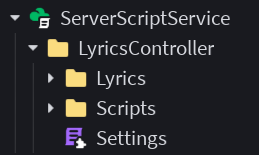
When you're in studio, you can drag the model from the Toolbox into your game. The folder you inserted should go into ServerScriptService
Updates
To allow the Lyrics Controller to check for updates, go to the Security tab in Game Settings and enable HTTP Requests.
Topbar+ warning
If you're using Topbar+ in your game for topbar icons, the version of it in your game might interfere with the version bundled with the Lyrics Controller.
This is because models inserted from the Toolbox are sandboxed by default, but Topbar+ is on a list of manually excluded assets and is not sandboxed. This mix of sandboxing means that when the Lyrics Controller tries using the Topbar+ you have in your game already, it fails to run it, causing the entire system to fail.
To fix that, you should disable sandboxing on every script in the Lyrics Controller model. You can either do that manually or by selecting the Lyrics Controller folder and running the code below in the Command Bar in Studio (you can enable it in the Script tab):
for _, instance in game.Selection:Get() do for _, script in instance:QueryDescendants("LuaSourceContainer") do script.Sandboxed = false end end