Keybinds
GLights allow you to configure keybinds for every panel. This guide explains how to set them up and how to use them.
Setting up keybinds
Every panel gets its own set of keybinds. They are configured in the Keybinds setting in the Settings script.
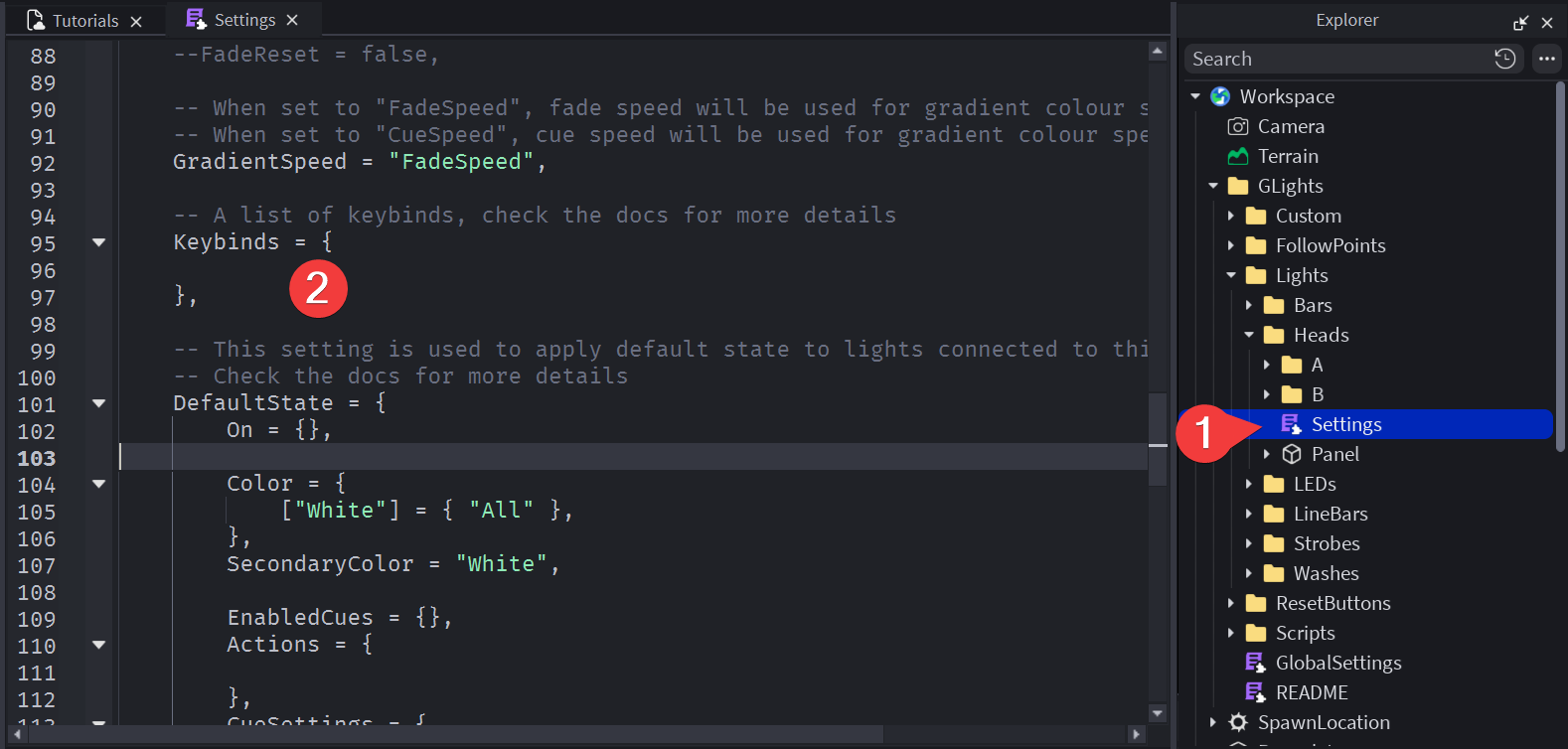
Every keybind should be put on a new line and should look like this:
{ Action = "ACTION_NAME", Value = "VALUE", Keys = { LIST_OF_KEYS } },
You should replace ACTION_NAME with the name of the action and VALUE with a specific value for that action (if needed).
LIST_OF_KEYS is a list of keys that need to be held down for this keybind to get activated. It can look something like this: Keys = { "LeftShift", "B" }. You can find a list of all key names on the Roblox documentation.
Below you can find a full list of keybind actions, as well as some examples.
On / Off / Reset
The actions for turning the lights on, off, or resetting them are On, Off, FadeOn, FadeOff, Reset and HardReset. None of them have any specific values.
{ Action = "On", Value = "", Keys = { LIST_OF_KEYS } },
{ Action = "Off", Value = "", Keys = { LIST_OF_KEYS } },
{ Action = "FadeOn", Value = "", Keys = { LIST_OF_KEYS } },
{ Action = "FadeOff", Value = "", Keys = { LIST_OF_KEYS } },
{ Action = "Reset", Value = "", Keys = { LIST_OF_KEYS } },
{ Action = "HardReset", Value = "", Keys = { LIST_OF_KEYS } },
Cues / Actions / Custom positions
The actions related to cues and actions are Action, CueToggle, CueOn and CueOff. Action will trigger an action. CueToggle will toggle a cue (turn it on if it's off and the other way around), while CueOn and CueOff force the cue to be either on or off.
These actions require a value which is the name of the cue or action. You can find all of them in the list below. Please note that Cue6 and custom positions are actions.
All cue names
StrobeRandomFadeRandomBumpRandomOldRandomState.Cue1State.Cue2State.Cue3State.Cue4State.Cue5State.Cue7State.Cue8State.Cue9State.Cue10State.Cue11State.Cue12Color.ColorCue1Color.ColorCue2Color.ColorCue3Color.ColorCue4Color.ColorCue5Position.TiltPosition.SlowTiltPosition.SmoothTiltPosition.RandomTiltPosition.PanPosition.SlowPanPosition.SmoothPanPosition.RandomPanPosition.CirclePosition.RandomCircle
All action names
FlashColorFlashCue6CustomPositions.CrossCustomPositions.InCustomPositions.WideCustomPositions.UD
{ Action = "Action", Value = "Flash", Keys = { LIST_OF_KEYS } },
{ Action = "CueToggle", Value = "State.Cue1", Keys = { LIST_OF_KEYS } },
{ Action = "CueOn", Value = "Color.ColorCue1", Keys = { LIST_OF_KEYS } },
{ Action = "CueOff", Value = "Position.Circle", Keys = { LIST_OF_KEYS } },
Colours
The action names for changing colours are Color, ColorA, ColorB, ColorSecondary and SwitchColors. ColorA and ColorB is the same as using the Combo button on the panel. ColorSecondary is used by colour cues. SwitchColors is used to switch ColorA and ColorB.
These actions (except for SwitchColors) require the name of the colour as the value. You can find a list of all default colour names below.
All colour names, in order
-
Red -
Orange -
Gold -
Yellow -
Green -
Lime -
CyanishGreen -
Cyan -
LightBlue -
Blue -
Purple -
Pink -
Magenta -
WarmWhite -
White -
ColdWhite -
Rainbow
{ Action = "ColorA", Value = "White", Keys = { LIST_OF_KEYS } },
{ Action = "ColorB", Value = "Blue", Keys = { LIST_OF_KEYS } },
{ Action = "Color", Value = "Red", Keys = { LIST_OF_KEYS } },
{ Action = "ColorSecondary", Value = "Rainbow", Keys = { LIST_OF_KEYS } },
{ Action = "SwitchColors", Value = "", Keys = { LIST_OF_KEYS } },
Tilt / Pan / Motor speed / Follow
The action names for tilt and pan are Tilt, TiltAdjust, Pan and PanAdjust. Tilt and Pan are used to force a specific tilt or pan (for example force all lights to be tilted to 50 degrees), while TiltAdjust and PanAdjust are used to add or subtract a specific tilt or pan from the lights (for example tilt all lights by 10 more degrees).
All actions require a degree amount.
{ Action = "Tilt", Value = "90", Keys = { LIST_OF_KEYS } },
{ Action = "Pan", Value = "50", Keys = { LIST_OF_KEYS } },
{ Action = "TiltAdjust", Value = "+10", Keys = { LIST_OF_KEYS } },
{ Action = "PanAdjust", Value = "-5", Keys = { LIST_OF_KEYS } },
Motor speed can be changed with the MotorSpeed action. Its value should be one of: FREEZE, SS, S, M or F.
{ Action = "MotorSpeed", Value = "S", Keys = { LIST_OF_KEYS } },
Objects can be followed with the Follow action. Its value should be either the name of a player, the name of a follow point or nothing to stop following.
{ Action = "Follow", Value = "gabys2005", Keys = { LIST_OF_KEYS } },
{ Action = "Follow", Value = "Follow point 1", Keys = { LIST_OF_KEYS } },
{ Action = "Follow", Value = "", Keys = { LIST_OF_KEYS } },
Modifiers / Sliders / Gobo Rotate
Brightness, beam thickness and gobo spread can be changed with the Brightness, BeamThickness and GoboSpread actions respectively. For their values you should use either a full number (like 100) to set a specific brightness / thickness / spread, or a number with a + or - (like +10 or -5) to increase or decrease the brightness / thickness / spread.
{ Action = "Brightness", Value = "100", Keys = { LIST_OF_KEYS } },
{ Action = "Brightness", Value = "+10", Keys = { LIST_OF_KEYS } },
{ Action = "Brightness", Value = "-10", Keys = { LIST_OF_KEYS } },

{ Action = "BeamThickness", Value = "100", Keys = { LIST_OF_KEYS } },
{ Action = "BeamThickness", Value = "+10", Keys = { LIST_OF_KEYS } },
{ Action = "BeamThickness", Value = "-10", Keys = { LIST_OF_KEYS } },

{ Action = "GoboSpread", Value = "100", Keys = { LIST_OF_KEYS } },
{ Action = "GoboSpread", Value = "+10", Keys = { LIST_OF_KEYS } },
{ Action = "GoboSpread", Value = "-10", Keys = { LIST_OF_KEYS } },
Cue speed and fade speed use the same logic as above, but their values are smaller.
{ Action = "CueSpeed", Value = "1", Keys = { LIST_OF_KEYS } },
{ Action = "CueSpeed", Value = "+0.25", Keys = { LIST_OF_KEYS } },
{ Action = "CueSpeed", Value = "-0.25", Keys = { LIST_OF_KEYS } },

{ Action = "FadeSpeed", Value = "1", Keys = { LIST_OF_KEYS } },
{ Action = "FadeSpeed", Value = "+0.25", Keys = { LIST_OF_KEYS } },
{ Action = "FadeSpeed", Value = "-0.25", Keys = { LIST_OF_KEYS } },
Gobo Rotate, Group Fixtures, Kill Cues, Loop Cues, Group Random, Smooth Colour and Animated Gradients all use the same system. Their value can be set to Toggle to toggle that modifier, On to force that modifier to be on, and Off to force that modifier to be off.
{ Action = "GoboRotate", Value = "Toggle", Keys = { LIST_OF_KEYS } },
{ Action = "GoboRotate", Value = "On", Keys = { LIST_OF_KEYS } },
{ Action = "GoboRotate", Value = "Off", Keys = { LIST_OF_KEYS } },

{ Action = "GroupFixtures", Value = "Toggle", Keys = { LIST_OF_KEYS } },
{ Action = "GroupFixtures", Value = "On", Keys = { LIST_OF_KEYS } },
{ Action = "GroupFixtures", Value = "Off", Keys = { LIST_OF_KEYS } },

{ Action = "KillCues", Value = "Toggle", Keys = { LIST_OF_KEYS } },
{ Action = "KillCues", Value = "On", Keys = { LIST_OF_KEYS } },
{ Action = "KillCues", Value = "Off", Keys = { LIST_OF_KEYS } },

{ Action = "LoopCues", Value = "Toggle", Keys = { LIST_OF_KEYS } },
{ Action = "LoopCues", Value = "On", Keys = { LIST_OF_KEYS } },
{ Action = "LoopCues", Value = "Off", Keys = { LIST_OF_KEYS } },

{ Action = "GroupRandom", Value = "Toggle", Keys = { LIST_OF_KEYS } },
{ Action = "GroupRandom", Value = "On", Keys = { LIST_OF_KEYS } },
{ Action = "GroupRandom", Value = "Off", Keys = { LIST_OF_KEYS } },

{ Action = "SmoothColor", Value = "Toggle", Keys = { LIST_OF_KEYS } },
{ Action = "SmoothColor", Value = "On", Keys = { LIST_OF_KEYS } },
{ Action = "SmoothColor", Value = "Off", Keys = { LIST_OF_KEYS } },

{ Action = "AnimatedGradients", Value = "Toggle", Keys = { LIST_OF_KEYS } },
{ Action = "AnimatedGradients", Value = "On", Keys = { LIST_OF_KEYS } },
{ Action = "AnimatedGradients", Value = "Off", Keys = { LIST_OF_KEYS } },
Beam mode / Groups / Cue 3 groups
Beam mode can be changed with the BeamMode action. Its value must be one of: NoBeam, Beam, Gobo.
{ Action = "BeamMode", Value = "NoBeam", Keys = { LIST_OF_KEYS } },
{ Action = "BeamMode", Value = "Beam", Keys = { LIST_OF_KEYS } },
{ Action = "BeamMode", Value = "Gobo", Keys = { LIST_OF_KEYS } },
Groups on the panel (like A, B, C and so on) can be toggled by the GroupToggle, GroupOn and GroupOff actions. Their values should be the name of the group.
{ Action = "GroupToggle", Value = "A", Keys = { LIST_OF_KEYS } },
{ Action = "GroupOn", Value = "B", Keys = { LIST_OF_KEYS } },
{ Action = "GroupOff", Value = "C", Keys = { LIST_OF_KEYS } },
Cue 3 groups setting can be changed with the Cue3Groups action. The value should be the amount of groups to affect.
{ Action = "Cue3Groups", Value = "5", Keys = { LIST_OF_KEYS } },
Example
In this example:
- pressing
Shift + Qwill turn the lights on - pressing
Shift + Ewill turn the lights off - pressing
Shift + M,Shift + N,Shift + BandShift + Vwill toggle cues 1 to 4 - pressing
Shift + Lwill increase tilt by10degrees - pressing
Shift + Kwill decrease tilt by10degrees - pressing
Shift + Rwill set the colour toRainbow - pressing
Shift + Twill set the colour toWhite
Keybinds = {
    { Action = "On", Value = "", Keys = { "LeftShift", "Q" } },
    { Action = "Off", Value = "", Keys = { "LeftShift", "E" } },
    { Action = "CueToggle", Value = "State.Cue1", Keys = { "LeftShift", "M" } },
    { Action = "CueToggle", Value = "State.Cue2", Keys = { "LeftShift", "N" } },
    { Action = "CueToggle", Value = "State.Cue3", Keys = { "LeftShift", "B" } },
    { Action = "CueToggle", Value = "State.Cue4", Keys = { "LeftShift", "V" } },
    { Action = "TiltAdjust", Value = "+10", Keys = { "LeftShift", "L" } },
    { Action = "TiltAdjust", Value = "-10", Keys = { "LeftShift", "K" } },
    { Action = "Color", Value = "Rainbow", Keys = { "LeftShift", "R" } },
    { Action = "Color", Value = "White", Keys = { "LeftShift", "T" } },
},
Cheatsheet
This cheatsheet contains all of the possible keybinds.
All keybinds
{ Action = "On", Value = "", Keys = { LIST_OF_KEYS } },
{ Action = "Off", Value = "", Keys = { LIST_OF_KEYS } },
{ Action = "FadeOn", Value = "", Keys = { LIST_OF_KEYS } },
{ Action = "FadeOff", Value = "", Keys = { LIST_OF_KEYS } },
{ Action = "Reset", Value = "", Keys = { LIST_OF_KEYS } },
{ Action = "HardReset", Value = "", Keys = { LIST_OF_KEYS } },

{ Action = "Action", Value = "Flash", Keys = { LIST_OF_KEYS } },
{ Action = "CueToggle", Value = "State.Cue1", Keys = { LIST_OF_KEYS } },
{ Action = "CueOn", Value = "Color.ColorCue1", Keys = { LIST_OF_KEYS } },
{ Action = "CueOff", Value = "Position.Circle", Keys = { LIST_OF_KEYS } },

{ Action = "ColorA", Value = "White", Keys = { LIST_OF_KEYS } },
{ Action = "ColorB", Value = "Blue", Keys = { LIST_OF_KEYS } },
{ Action = "Color", Value = "Red", Keys = { LIST_OF_KEYS } },
{ Action = "ColorSecondary", Value = "Rainbow", Keys = { LIST_OF_KEYS } },
{ Action = "SwitchColors", Value = "", Keys = { LIST_OF_KEYS } },

{ Action = "Tilt", Value = "90", Keys = { LIST_OF_KEYS } },
{ Action = "Pan", Value = "50", Keys = { LIST_OF_KEYS } },
{ Action = "TiltAdjust", Value = "+10", Keys = { LIST_OF_KEYS } },
{ Action = "PanAdjust", Value = "-5", Keys = { LIST_OF_KEYS } },

{ Action = "MotorSpeed", Value = "FREEZE", Keys = { LIST_OF_KEYS } },
{ Action = "MotorSpeed", Value = "SS", Keys = { LIST_OF_KEYS } },
{ Action = "MotorSpeed", Value = "S", Keys = { LIST_OF_KEYS } },
{ Action = "MotorSpeed", Value = "M", Keys = { LIST_OF_KEYS } },
{ Action = "MotorSpeed", Value = "F", Keys = { LIST_OF_KEYS } },

{ Action = "Follow", Value = "gabys2005", Keys = { LIST_OF_KEYS } },
{ Action = "Follow", Value = "Follow point 1", Keys = { LIST_OF_KEYS } },
{ Action = "Follow", Value = "", Keys = { LIST_OF_KEYS } },

{ Action = "Brightness", Value = "100", Keys = { LIST_OF_KEYS } },
{ Action = "Brightness", Value = "+10", Keys = { LIST_OF_KEYS } },
{ Action = "Brightness", Value = "-10", Keys = { LIST_OF_KEYS } },

{ Action = "BeamThickness", Value = "100", Keys = { LIST_OF_KEYS } },
{ Action = "BeamThickness", Value = "+10", Keys = { LIST_OF_KEYS } },
{ Action = "BeamThickness", Value = "-10", Keys = { LIST_OF_KEYS } },

{ Action = "GoboSpread", Value = "100", Keys = { LIST_OF_KEYS } },
{ Action = "GoboSpread", Value = "+10", Keys = { LIST_OF_KEYS } },
{ Action = "GoboSpread", Value = "-10", Keys = { LIST_OF_KEYS } },

{ Action = "CueSpeed", Value = "1", Keys = { LIST_OF_KEYS } },
{ Action = "CueSpeed", Value = "+0.25", Keys = { LIST_OF_KEYS } },
{ Action = "CueSpeed", Value = "-0.25", Keys = { LIST_OF_KEYS } },

{ Action = "FadeSpeed", Value = "1", Keys = { LIST_OF_KEYS } },
{ Action = "FadeSpeed", Value = "+0.25", Keys = { LIST_OF_KEYS } },
{ Action = "FadeSpeed", Value = "-0.25", Keys = { LIST_OF_KEYS } },

{ Action = "GoboRotate", Value = "Toggle", Keys = { LIST_OF_KEYS } },
{ Action = "GoboRotate", Value = "On", Keys = { LIST_OF_KEYS } },
{ Action = "GoboRotate", Value = "Off", Keys = { LIST_OF_KEYS } },

{ Action = "GroupFixtures", Value = "Toggle", Keys = { LIST_OF_KEYS } },
{ Action = "GroupFixtures", Value = "On", Keys = { LIST_OF_KEYS } },
{ Action = "GroupFixtures", Value = "Off", Keys = { LIST_OF_KEYS } },

{ Action = "KillCues", Value = "Toggle", Keys = { LIST_OF_KEYS } },
{ Action = "KillCues", Value = "On", Keys = { LIST_OF_KEYS } },
{ Action = "KillCues", Value = "Off", Keys = { LIST_OF_KEYS } },

{ Action = "LoopCues", Value = "Toggle", Keys = { LIST_OF_KEYS } },
{ Action = "LoopCues", Value = "On", Keys = { LIST_OF_KEYS } },
{ Action = "LoopCues", Value = "Off", Keys = { LIST_OF_KEYS } },

{ Action = "GroupRandom", Value = "Toggle", Keys = { LIST_OF_KEYS } },
{ Action = "GroupRandom", Value = "On", Keys = { LIST_OF_KEYS } },
{ Action = "GroupRandom", Value = "Off", Keys = { LIST_OF_KEYS } },

{ Action = "SmoothColor", Value = "Toggle", Keys = { LIST_OF_KEYS } },
{ Action = "SmoothColor", Value = "On", Keys = { LIST_OF_KEYS } },
{ Action = "SmoothColor", Value = "Off", Keys = { LIST_OF_KEYS } },

{ Action = "AnimatedGradients", Value = "Toggle", Keys = { LIST_OF_KEYS } },
{ Action = "AnimatedGradients", Value = "On", Keys = { LIST_OF_KEYS } },
{ Action = "AnimatedGradients", Value = "Off", Keys = { LIST_OF_KEYS } },

{ Action = "BeamMode", Value = "NoBeam", Keys = { LIST_OF_KEYS } },
{ Action = "BeamMode", Value = "Beam", Keys = { LIST_OF_KEYS } },
{ Action = "BeamMode", Value = "Gobo", Keys = { LIST_OF_KEYS } },

{ Action = "GroupToggle", Value = "A", Keys = { LIST_OF_KEYS } },
{ Action = "GroupOn", Value = "B", Keys = { LIST_OF_KEYS } },
{ Action = "GroupOff", Value = "C", Keys = { LIST_OF_KEYS } },

{ Action = "Cue3Groups", Value = "5", Keys = { LIST_OF_KEYS } },
All cue names
StrobeRandomFadeRandomBumpRandomOldRandomState.Cue1State.Cue2State.Cue3State.Cue4State.Cue5State.Cue7State.Cue8State.Cue9State.Cue10State.Cue11State.Cue12Color.ColorCue1Color.ColorCue2Color.ColorCue3Color.ColorCue4Color.ColorCue5Position.TiltPosition.SlowTiltPosition.SmoothTiltPosition.RandomTiltPosition.PanPosition.SlowPanPosition.SmoothPanPosition.RandomPanPosition.CirclePosition.RandomCircle
All action names
FlashColorFlashCue6CustomPositions.CrossCustomPositions.InCustomPositions.WideCustomPositions.UD
All colour names, in order
-
Red -
Orange -
Gold -
Yellow -
Green -
Lime -
CyanishGreen -
Cyan -
LightBlue -
Blue -
Purple -
Pink -
Magenta -
WarmWhite -
White -
ColdWhite -
Rainbow
Enabling keybinds in-game
Once you've added your keybinds, a keyboard icon will appear on the topbar of that panel. Clicking on it will enable keybinds, while right-clicking on it will disable keybinds.
